'%3e%3cg%20transform='translate(15%2015)%20translate(6%208)%20rotate(7)%20translate(-15%20-15)'%20opacity='0.7'%3e%3crect%20x='0'%20y='0'%20width='30'%20height='30'%20rx='8'%20fill='%23635bff'/%3e%3c/g%3e%3cg%20transform='translate(15%2015)%20translate(3%204)%20rotate(4)%20translate(-15%20-15)'%20opacity='0.85'%3e%3crect%20x='0'%20y='0'%20width='30'%20height='30'%20rx='8'%20fill='%233372f0'/%3e%3c/g%3e%3cg%20opacity='1'%3e%3crect%20x='0'%20y='0'%20width='30'%20height='30'%20rx='8'%20fill='%2300a9e0'/%3e%3c/g%3e%3c/g%3e%3c/svg%3e)
In BigCommerce
Create the product in your BigCommerce catalog
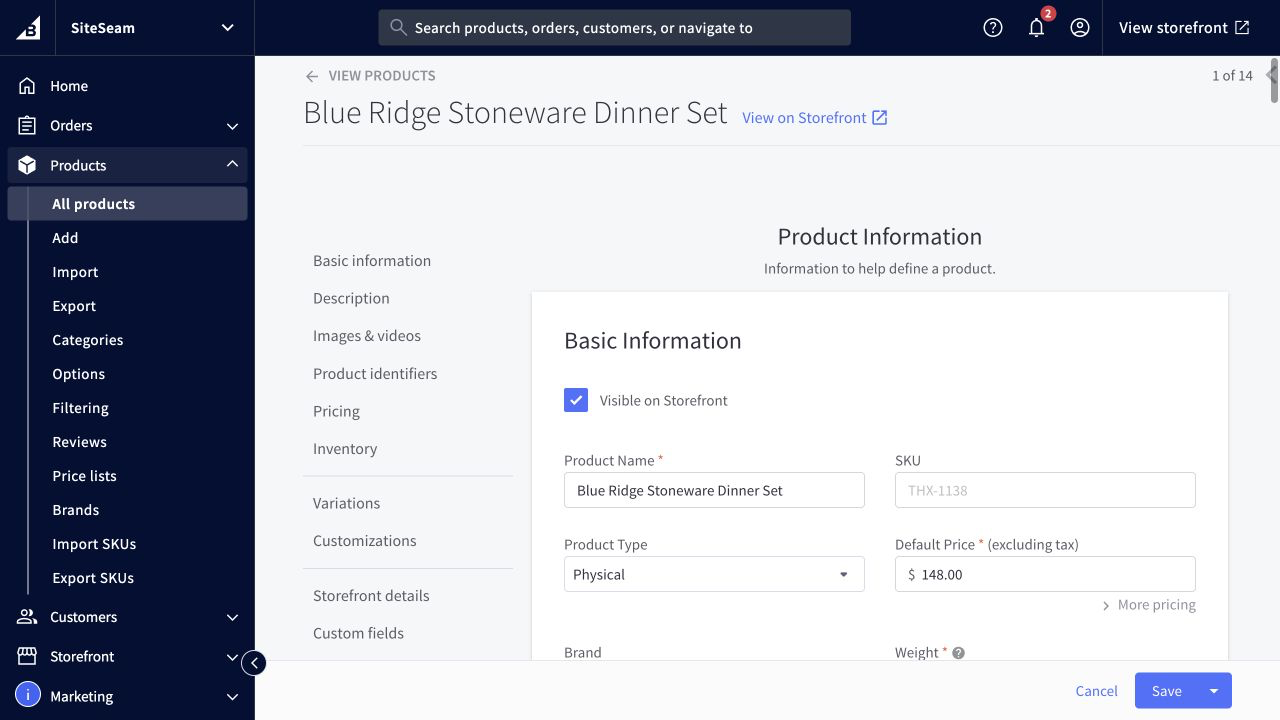
Create or open the product in the intended store. Use a clear name, description, and SKU so it is easy to identify from SiteSeam.
 Integration guide
 Follow the complete workflow—from preparing a BigCommerce product gallery through authorizing the connection, importing approved images, and reviewing the finished Reel.
10 documented steps
Confirmation screens are called out explicitly. SiteSeam copies only the product images you approve and does not change the BigCommerce store or catalog.
In BigCommerce
Create or open the product in the intended store. Use a clear name, description, and SKU so it is easy to identify from SiteSeam.
Confirmation
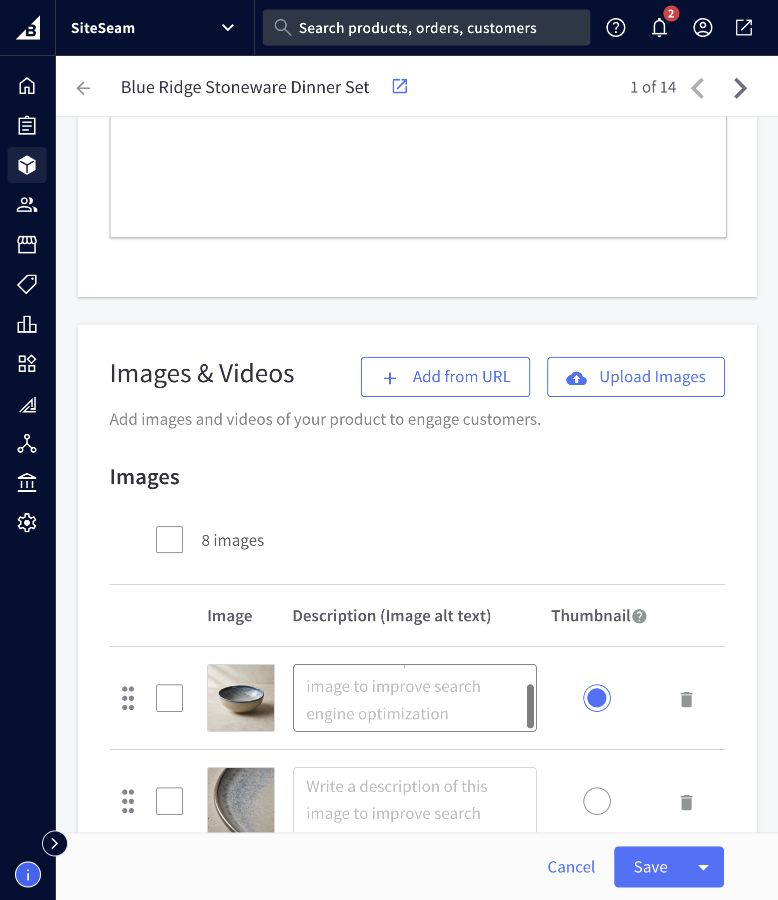
Confirmation screenReview the product and confirm that every approved hero, detail, variant, and lifestyle image appears in the intended order.
In SiteSeam
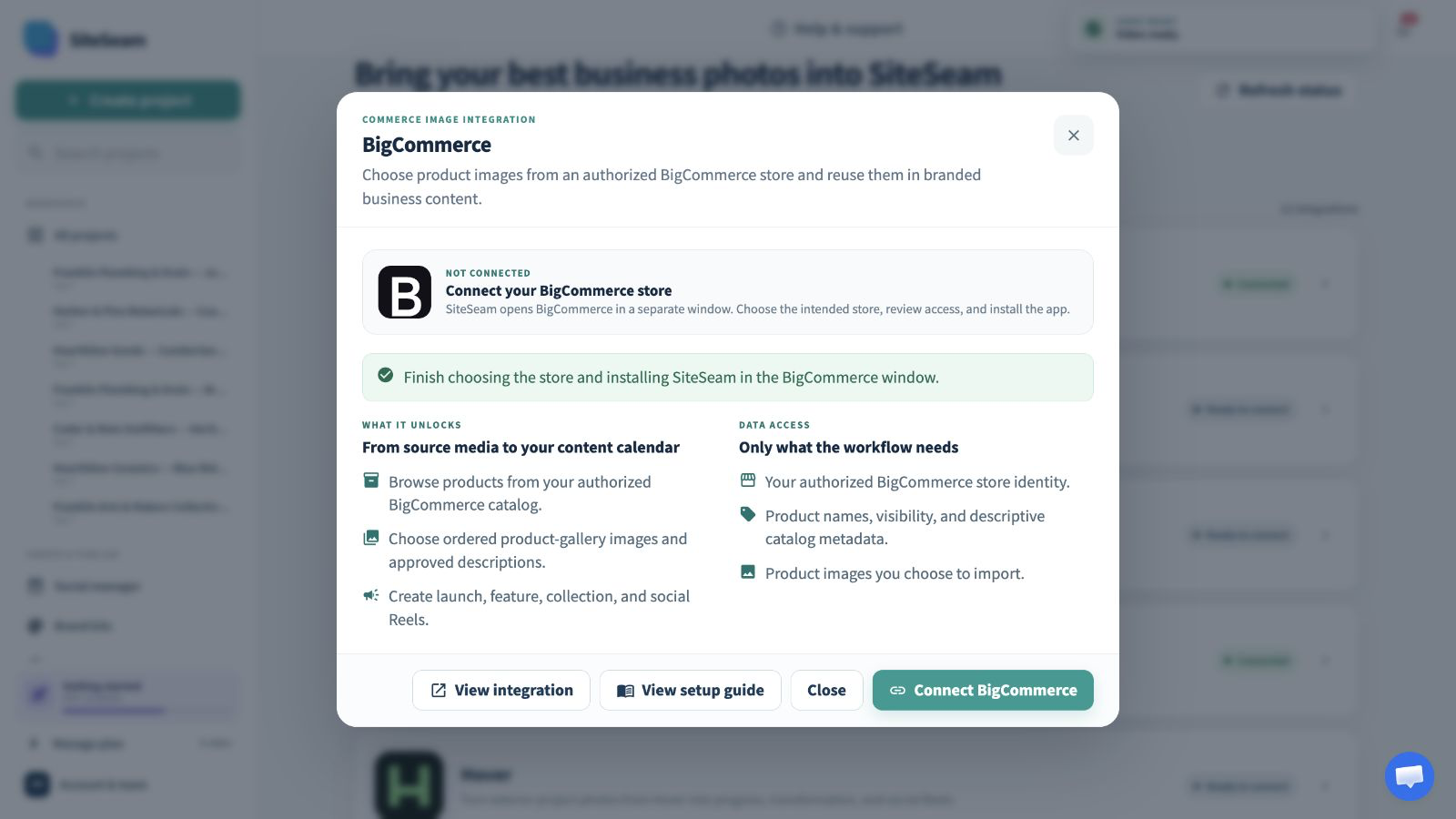
Open Integrations in SiteSeam, choose BigCommerce, and select Connect BigCommerce. Only a workspace owner or admin can manage the connection.
Confirmation
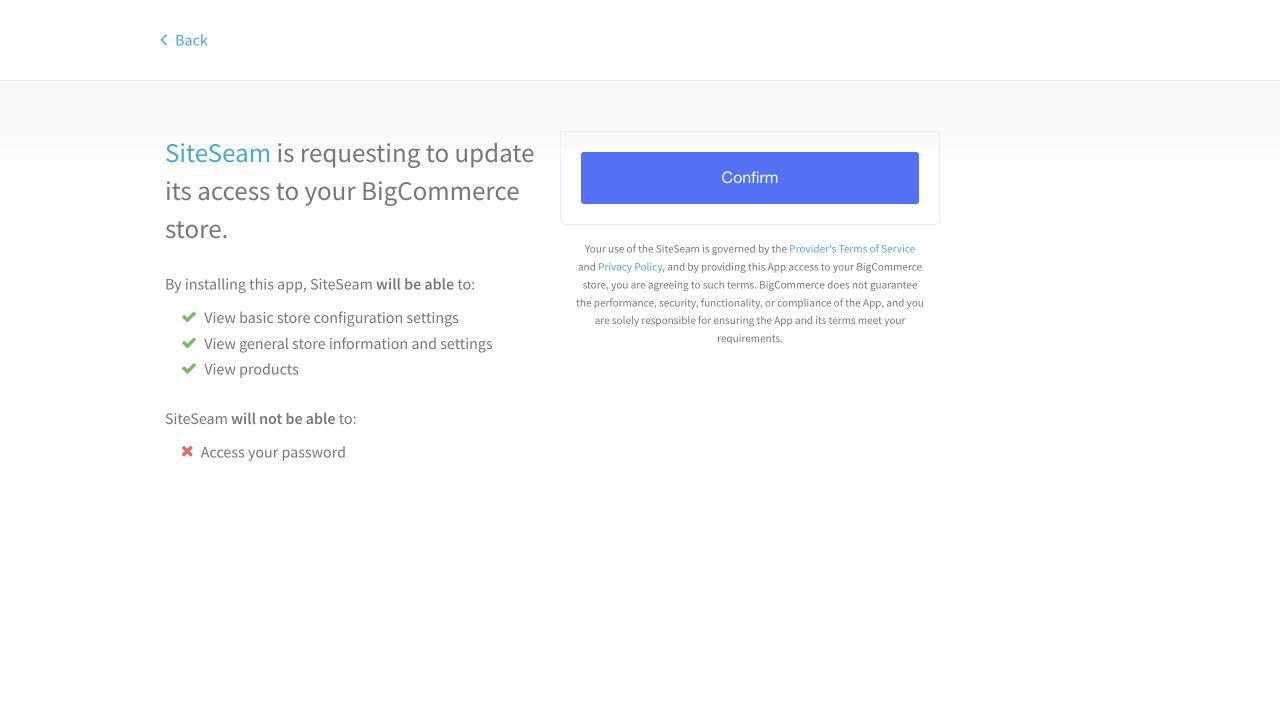
Confirmation screenReview the requested read-only store and product permissions and approve SiteSeam for the intended store. Your BigCommerce password is never shared with SiteSeam.
Confirmation
Confirmation screenSiteSeam confirms the connection and marks BigCommerce as connected. If access needs attention later, the same card guides an owner or admin through reconnecting.

In SiteSeam
Create a project for the Reel and give it a descriptive name. This project will hold the imported originals and the content you create from them.
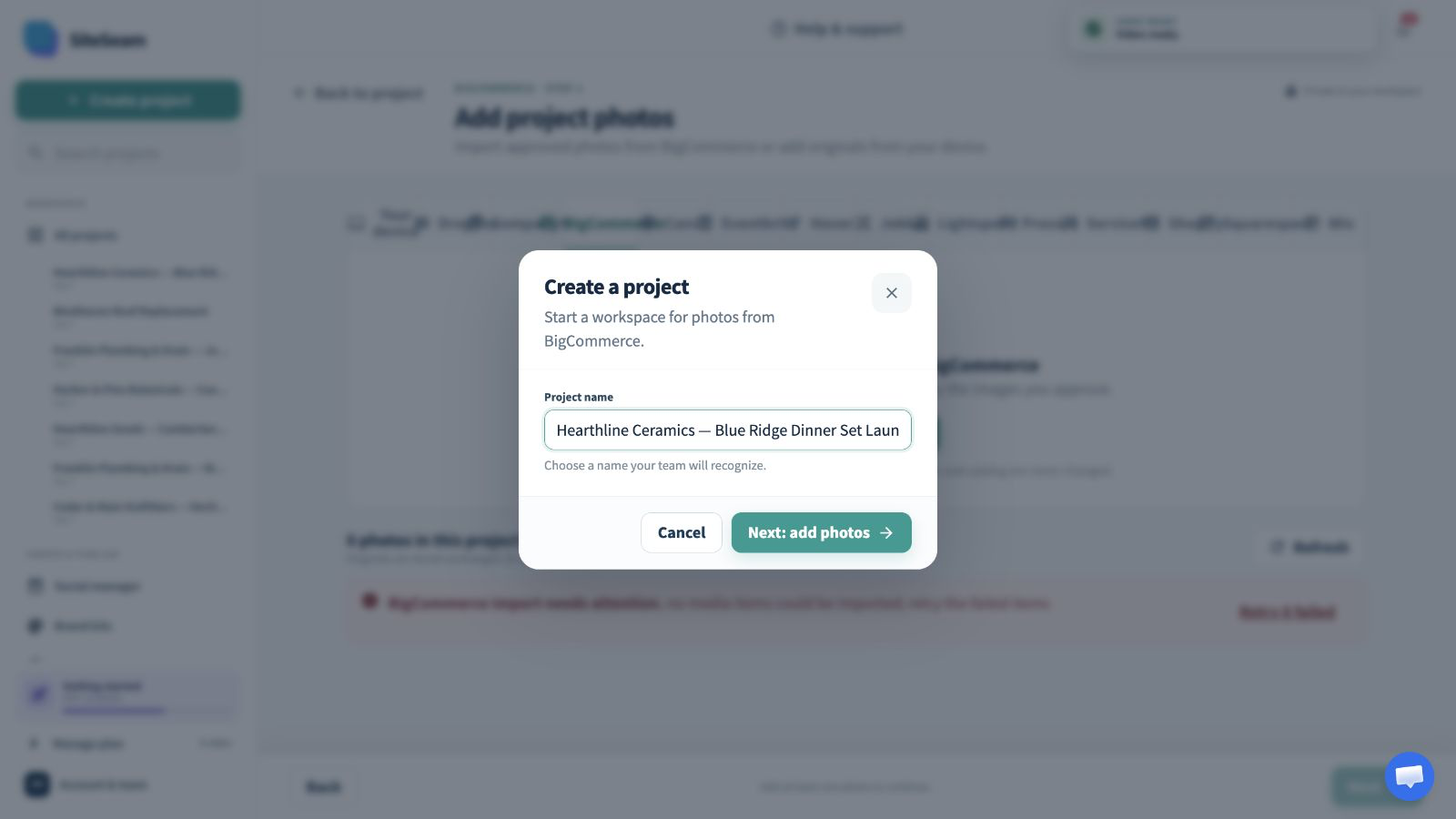
In SiteSeam
Select BigCommerce as the source, open the matching product, and choose only the product images you have permission to use.
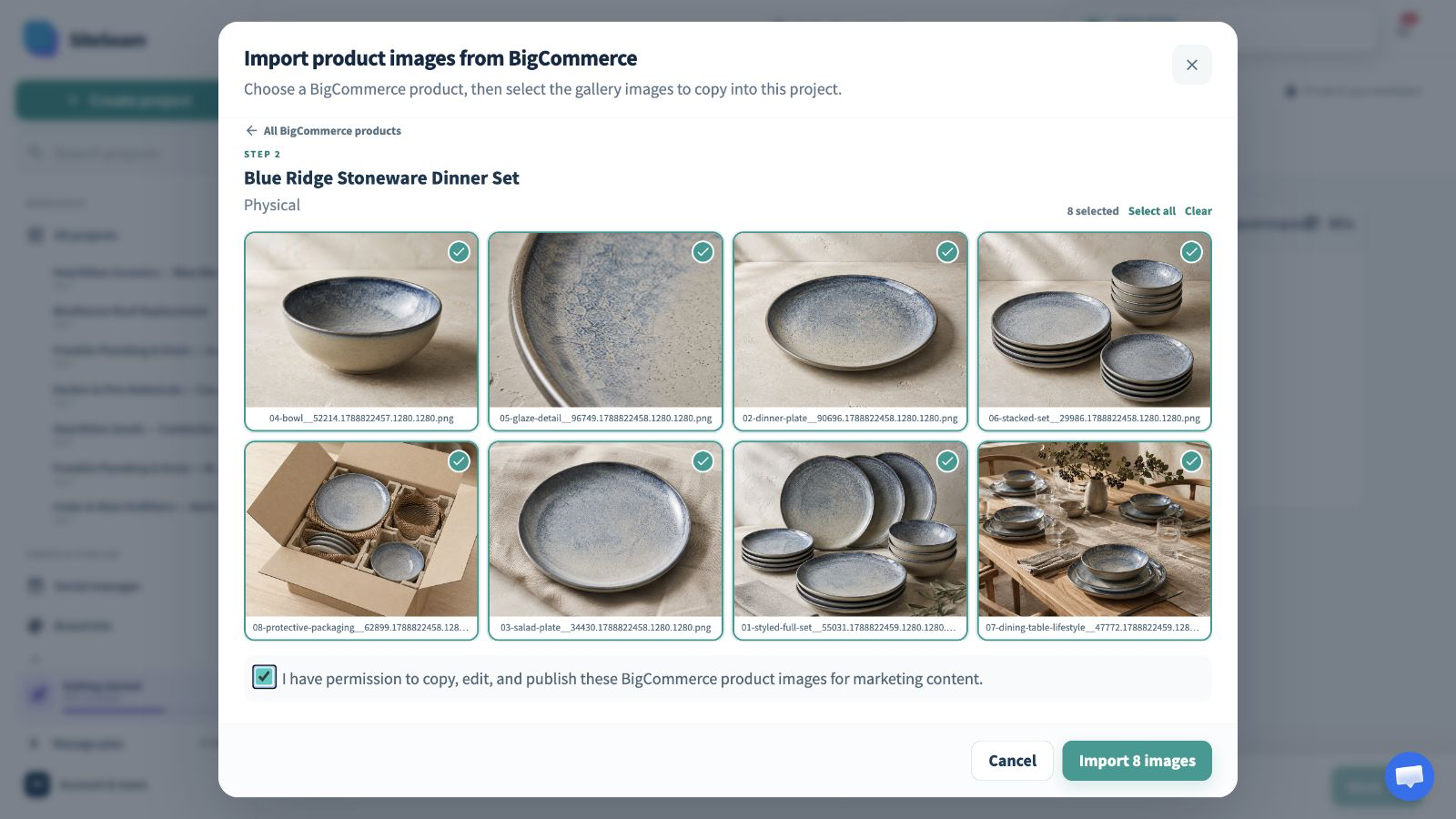
Confirmation
Confirmation screenAccept the media-rights statement and start the import. SiteSeam copies the selected product images into the project without changing their source in BigCommerce.
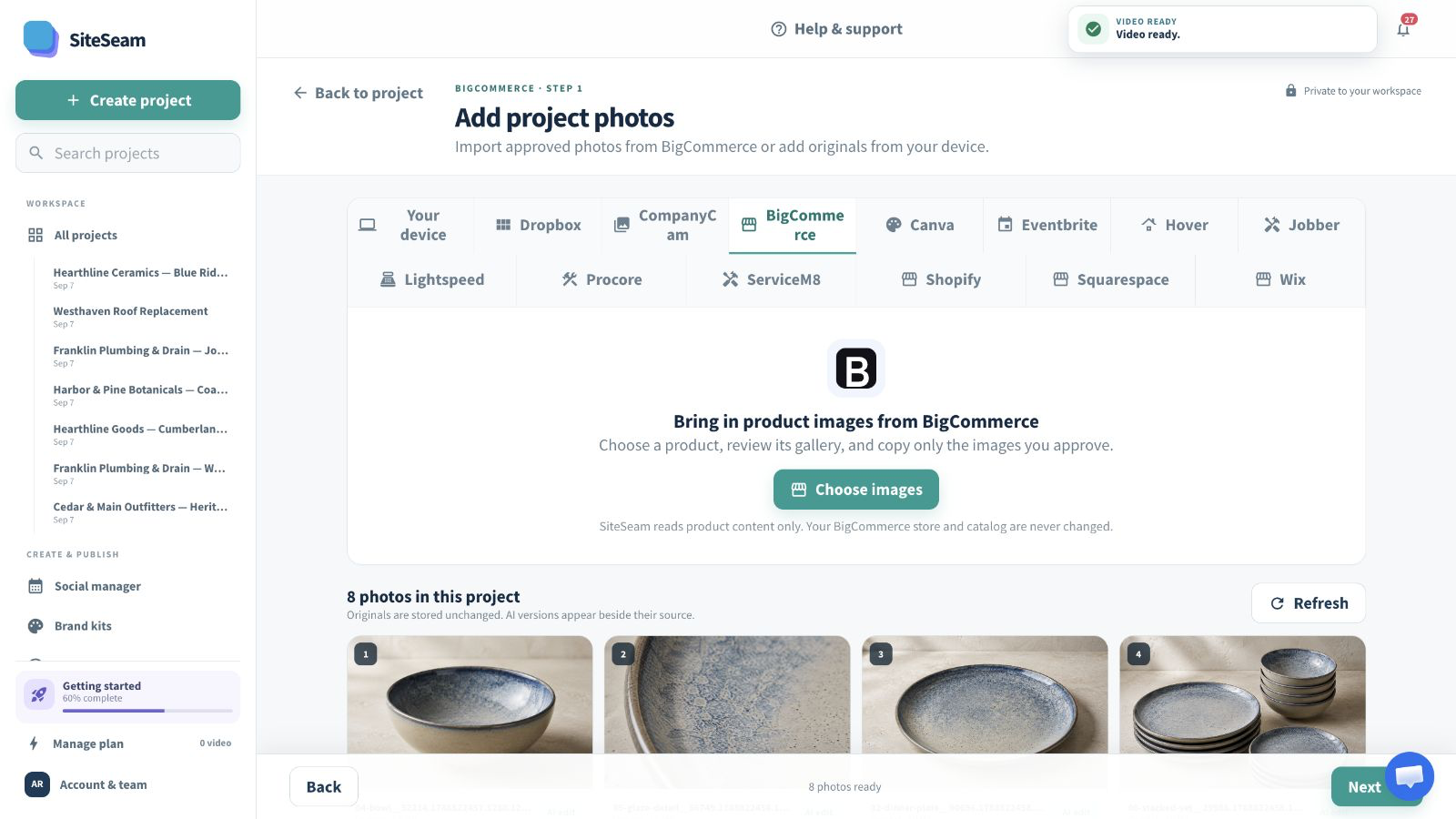
In SiteSeam
Start a Reel, arrange the imported images, choose movement and effects, then review the branding and format before generating.
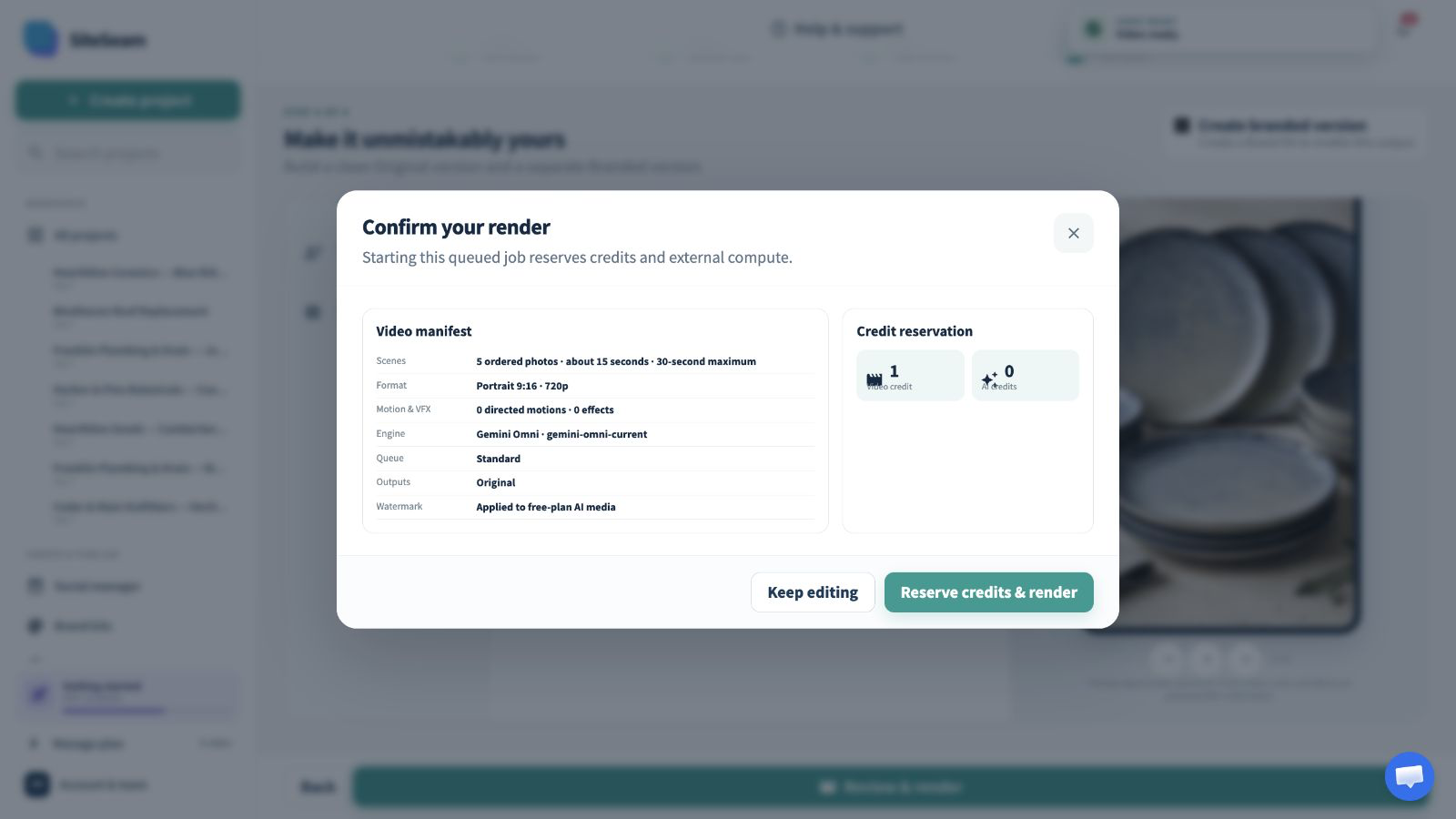
Confirmation
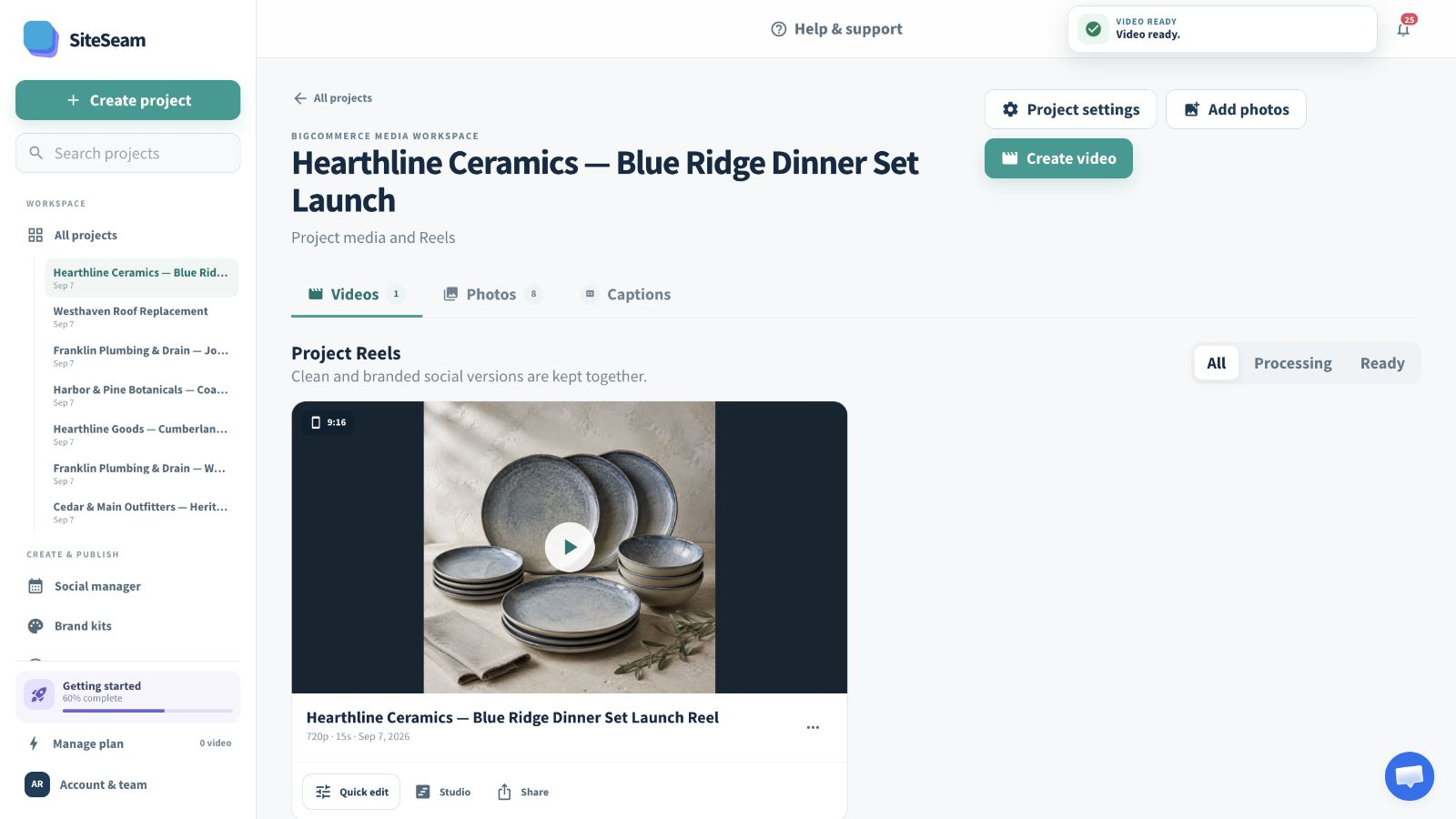
Confirmation screenOpen the finished Reel, review the result, and make any final adjustments before downloading or continuing to your publishing workflow.
Ready to use your BigCommerce product images?
Choose a BigCommerce product, import the approved images, and keep every Reel organized in one SiteSeam project.