'%3e%3cg%20transform='translate(15%2015)%20translate(6%208)%20rotate(7)%20translate(-15%20-15)'%20opacity='0.7'%3e%3crect%20x='0'%20y='0'%20width='30'%20height='30'%20rx='8'%20fill='%23635bff'/%3e%3c/g%3e%3cg%20transform='translate(15%2015)%20translate(3%204)%20rotate(4)%20translate(-15%20-15)'%20opacity='0.85'%3e%3crect%20x='0'%20y='0'%20width='30'%20height='30'%20rx='8'%20fill='%233372f0'/%3e%3c/g%3e%3cg%20opacity='1'%3e%3crect%20x='0'%20y='0'%20width='30'%20height='30'%20rx='8'%20fill='%2300a9e0'/%3e%3c/g%3e%3c/g%3e%3c/svg%3e)
In Bokun
Choose an experience you operate
Open an experience in your Bokun vendor account. Give it a clear name so your team can find it in SiteSeam.
Your experience is ready to identify in the connected vendor account.
 Integration guide
 Connect your Bokun vendor account, select experience photos, and build a branded tour or activity Reel.
10 documented steps
Screens show local testing with Bokun’s demo vendor, which completes OAuth without a separate consent screen. Public App Store availability is pending review. Keep the initiating browser tab open until authorization finishes. SiteSeam copies selected photos and leaves source experiences unchanged.
In Bokun
Open an experience in your Bokun vendor account. Give it a clear name so your team can find it in SiteSeam.
Your experience is ready to identify in the connected vendor account.
Confirmation
Review the photos attached to the experience. Use JPEG, PNG, or WebP images you have permission to edit and publish.
The approved experience photos are ready to select.
In SiteSeam
Open Integrations in SiteSeam and choose Bokun. Enter your vendor name or dashboard address, such as your-company.bokun.io, then select Connect Bokun. Only a workspace owner or admin can manage the connection.
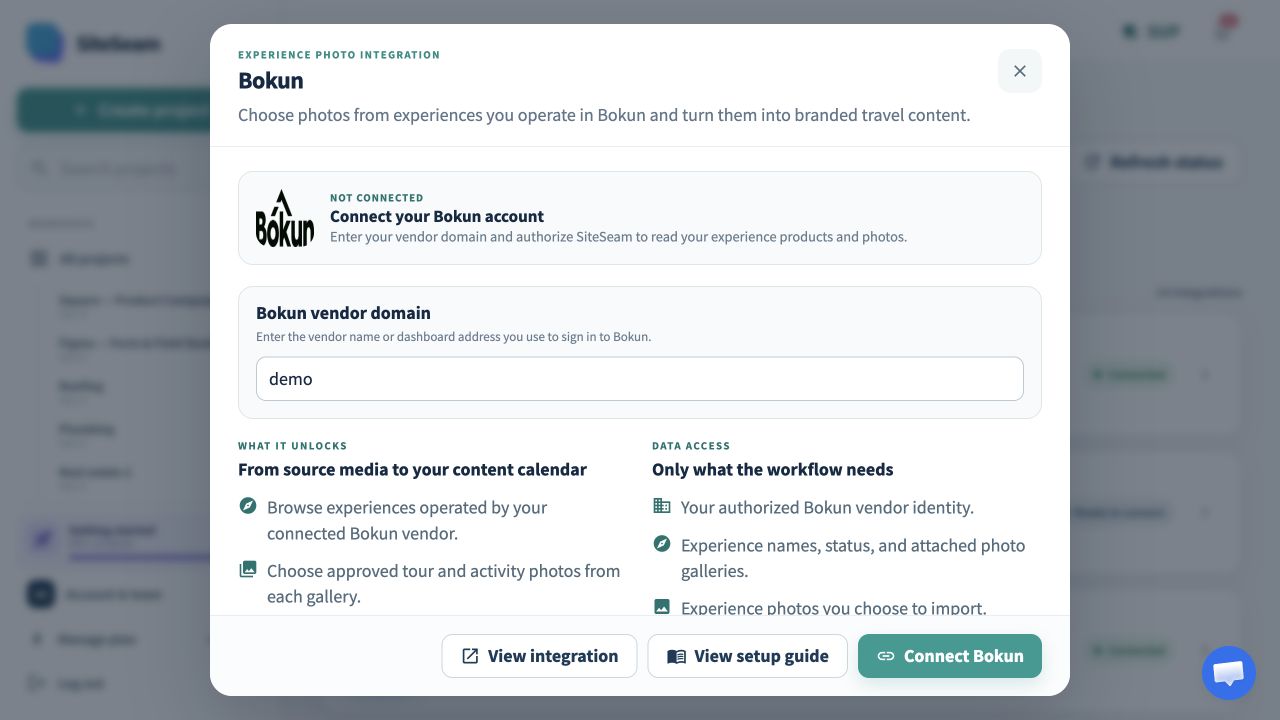
Confirmation
Sign in to Bokun if asked, review the product read permission, and authorize SiteSeam. Keep the initiating SiteSeam tab open until the connection finishes.
Bokun securely returns you to the SiteSeam tab that started the connection.
Confirmation
Confirmation screenSiteSeam confirms the connection and marks Bokun as connected. If access needs attention later, the same card guides an owner or admin through reconnecting.
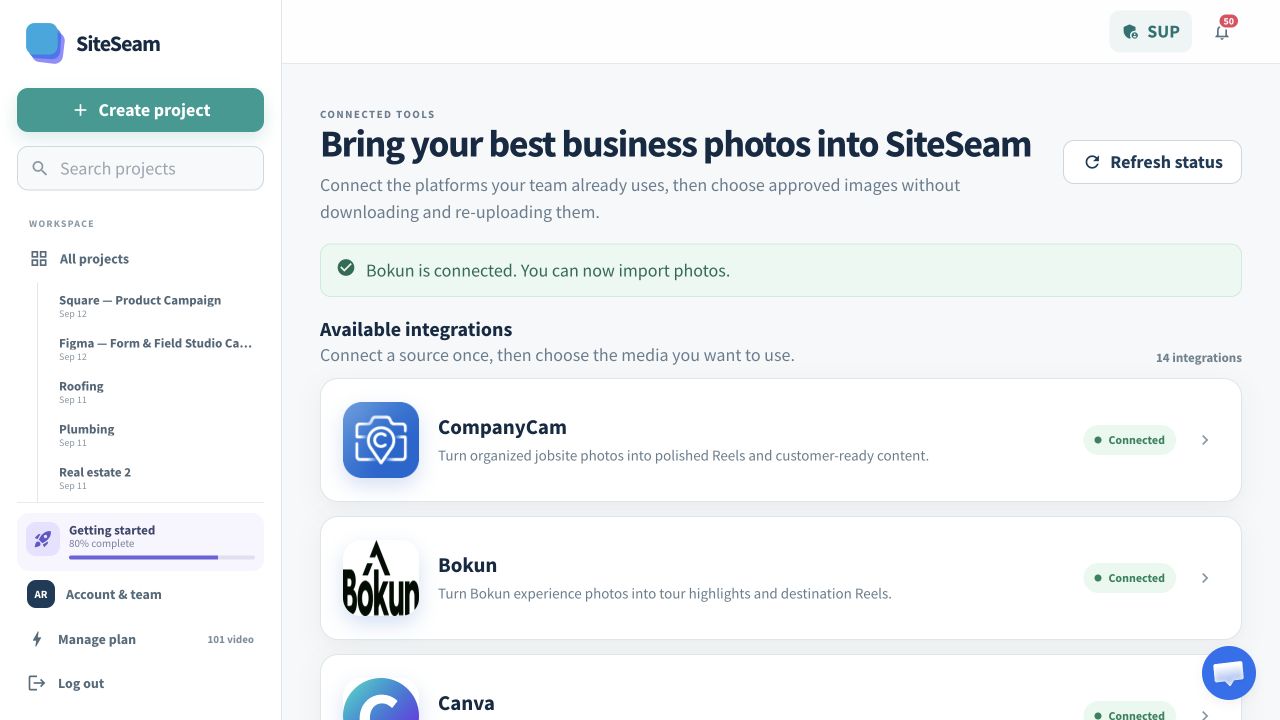
In SiteSeam
Create a project for the Reel and give it a descriptive name. This project will hold the imported originals and the content you create from them.
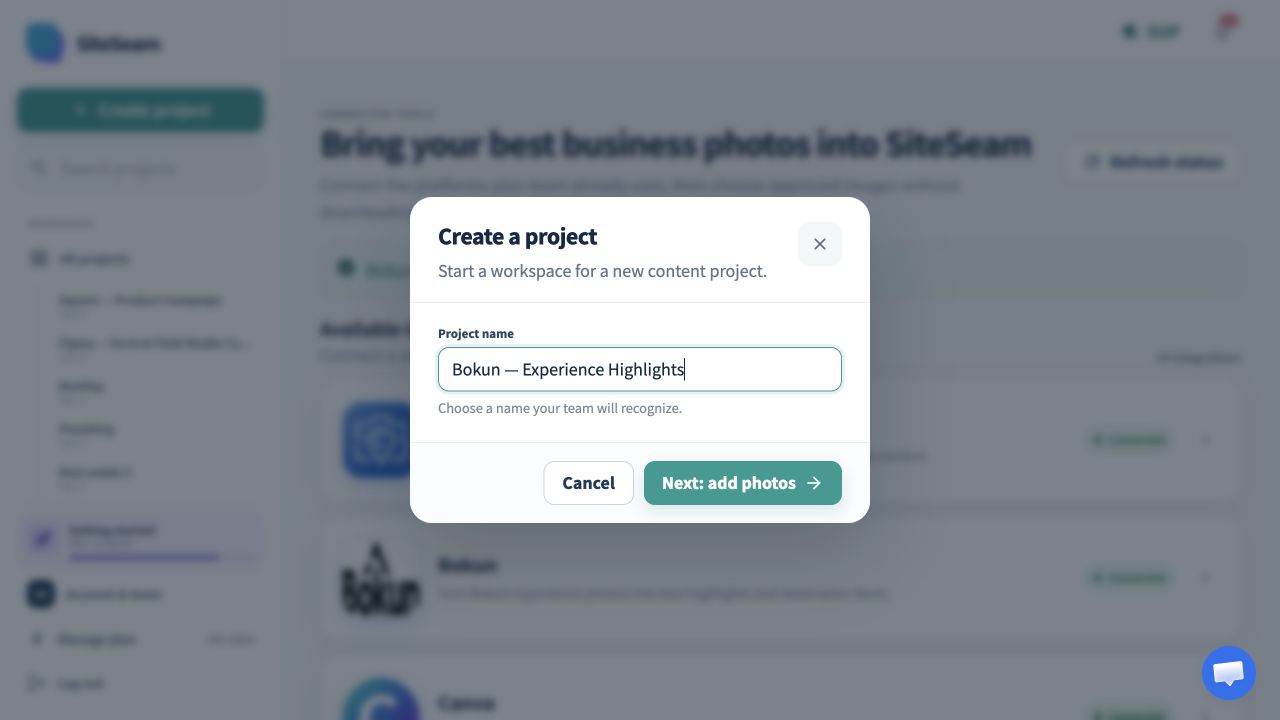
In SiteSeam
Select Bokun as the source, search by experience name or product code, and open the matching experience. Select the photos you want and confirm your rights to use them.
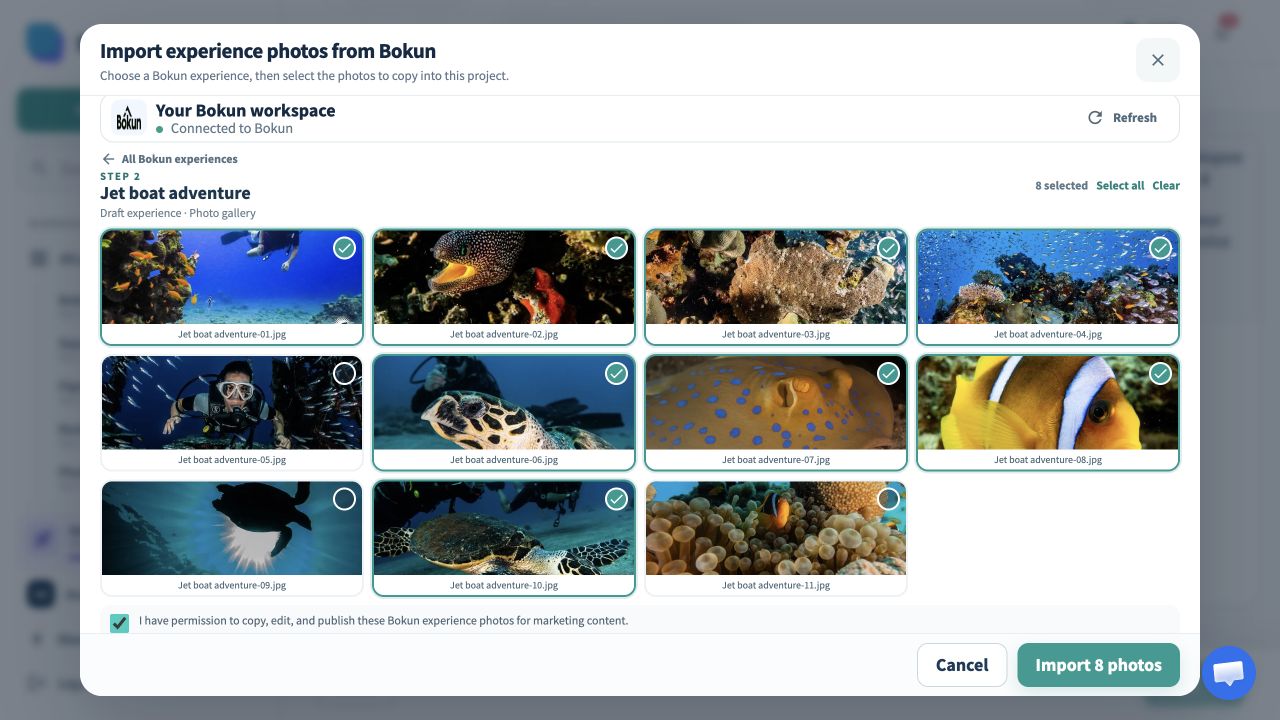
Confirmation
Confirmation screenAccept the media-rights statement and start the import. SiteSeam copies the selected experience photos into the project without changing their source in Bokun.
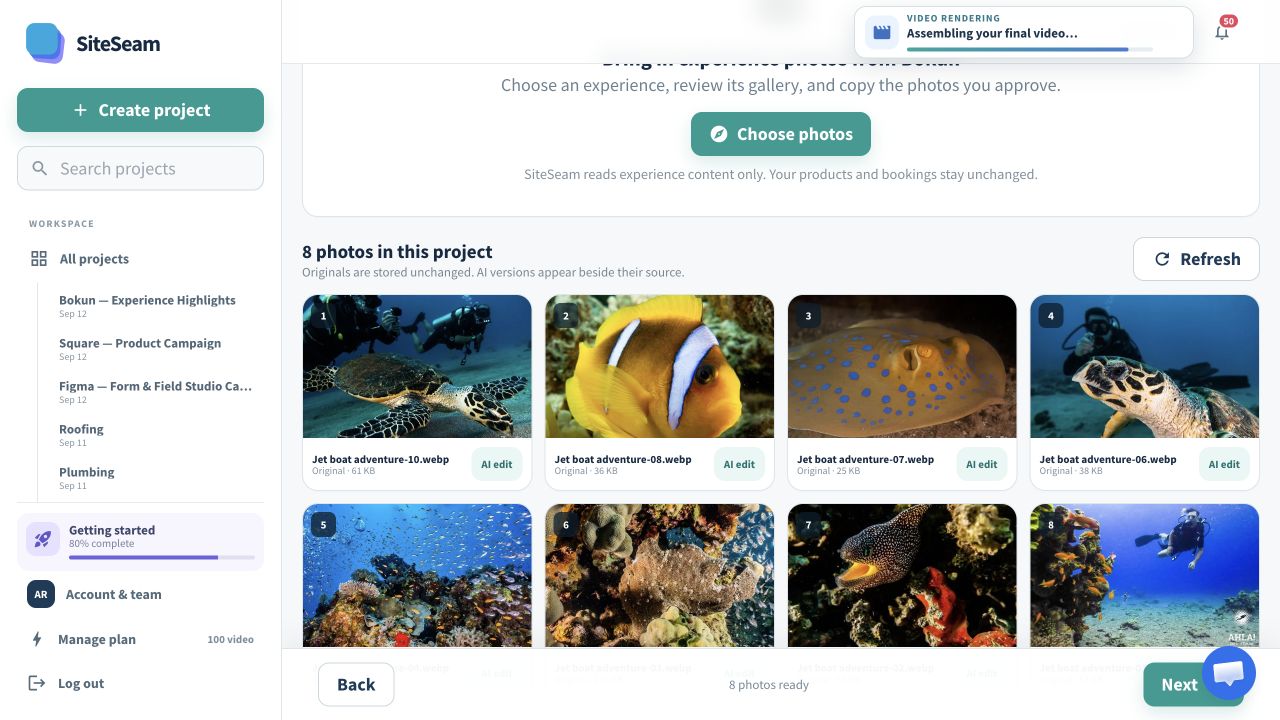
In SiteSeam
Start a Reel, arrange the imported images, choose movement and effects, then review the branding and format before generating.
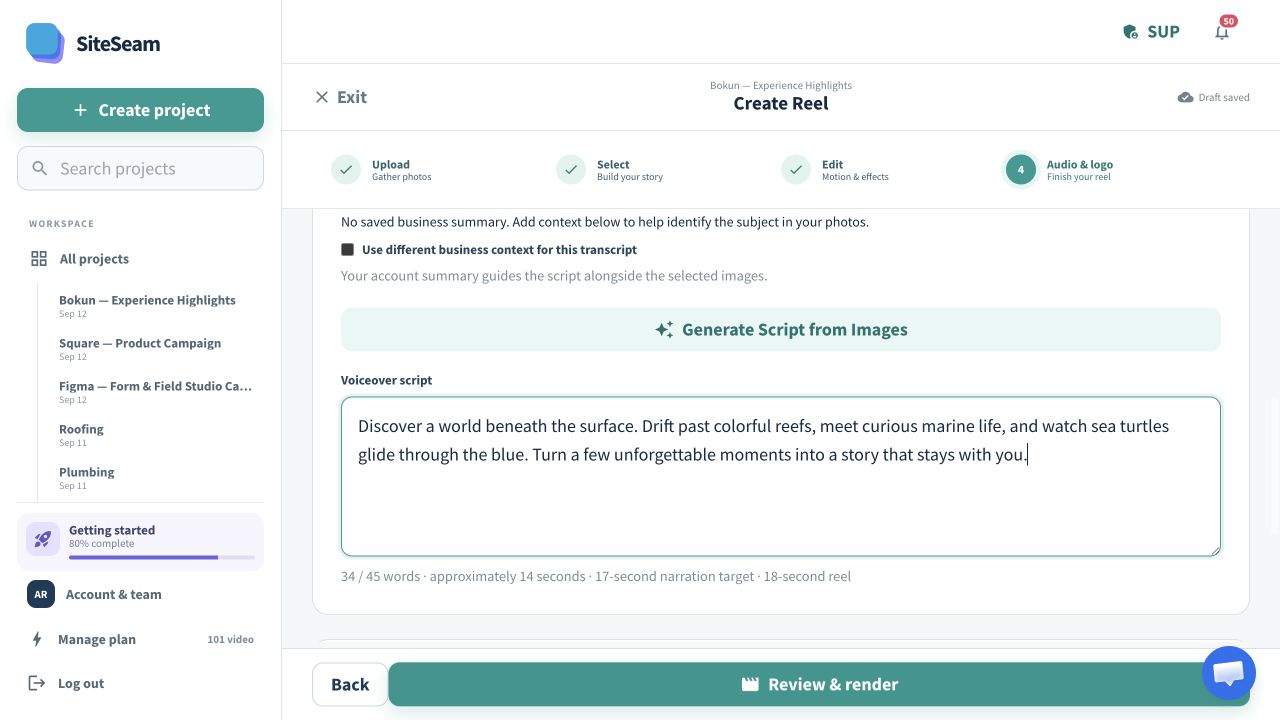
Confirmation
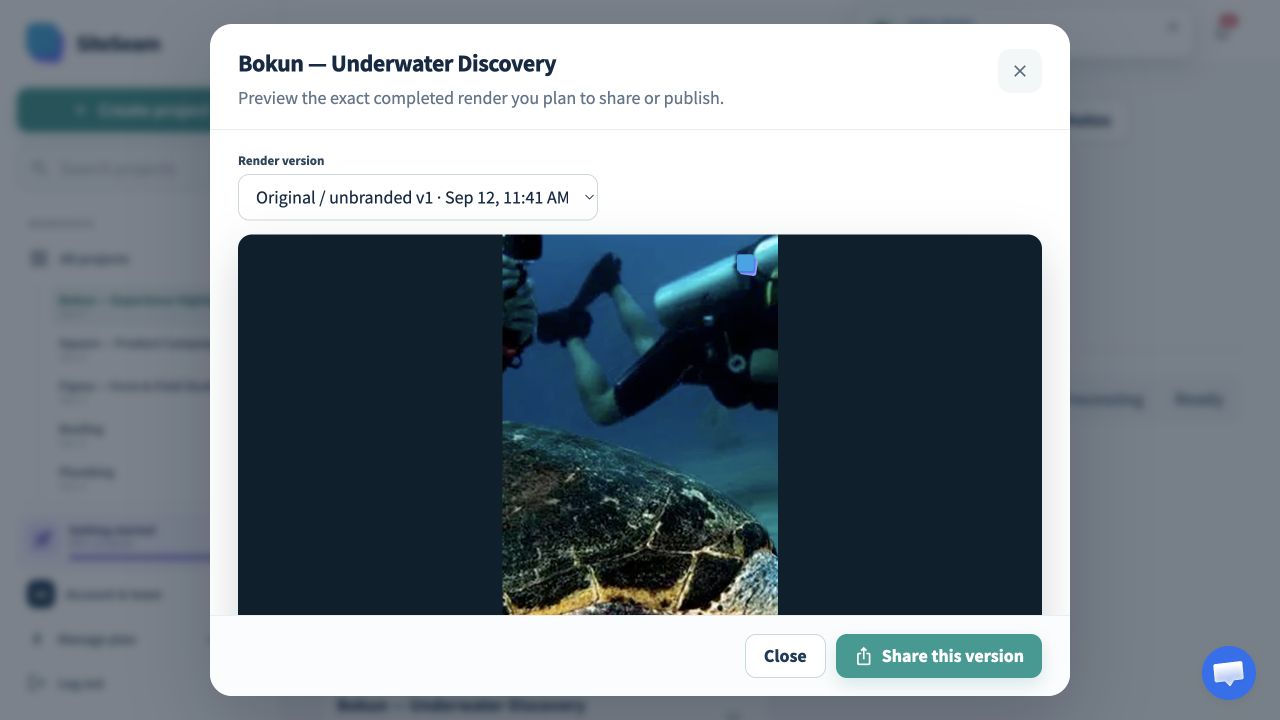
Confirmation screenOpen the finished Reel, review the result, and make any final adjustments before downloading or continuing to your publishing workflow.
Ready to tell your next experience story?
Choose a Bokun experience and keep its approved photos and finished Reels together in SiteSeam.